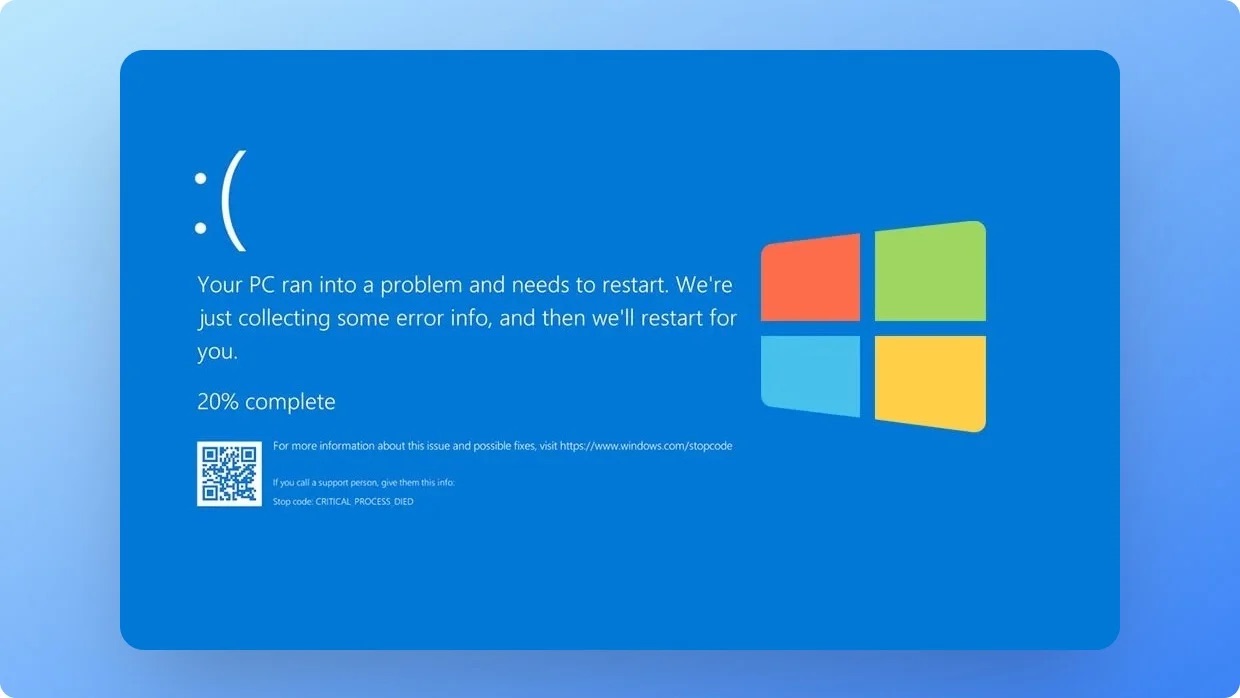

In the high-stakes world of modern computing—whether you’re grinding through deadlines on Windows 11 or battling in the latest AAA titles—nothing grinds your gears quite like a PC that randomly restarts without warning. One minute you’re deep in a spreadsheet or a boss fight; the next, your screen goes black, and you’re back at the login prompt. Frustrating? Absolutely. But fear not: random restarts are often fixable with a bit of detective work. According to recent tech forums and guides, this issue plagues millions, stemming from everything to overheating hardware to sneaky software glitches. 3 In this 2025 update, we’ll dive into the causes, step-by-step solutions, and pro tips to get your rig stable again. No BSOD? No problem—we’ve got you covered.
Why Does Your PC Keep Restarting Randomly?
Before the fixes, let’s pinpoint the culprits. Random restarts (sans Blue Screen of Death) are Windows’ way of saying “something’s wrong, and I’m bailing.” Common triggers include:
- Overheating: Dust-clogged fans or thermal paste gone bad push your CPU/GPU past safe temps, triggering auto-shutdowns.
- Power Supply Woes: A failing PSU can’t deliver steady juice, especially under load like gaming.
- Driver Drama: Outdated or corrupted graphics/audio drivers clash with Windows updates.
- Malware or Corruption: Viruses or corrupted system files force reboots as a self-preservation tactic.
- Hardware Faults: Faulty RAM, loose cables, or even overclocked components unstable at stock speeds.
- Software Settings: Automatic restart on errors (a “feature” in Windows) hides deeper issues.
Recent reports from 2025 highlight a spike in cases tied to AI-accelerated apps and hybrid work setups overloading older hardware. 1 The good news? Most fixes are DIY, and we’ll prioritize the safest, easiest ones first.
Essential Tools You’ll Need
Grab these freebies before starting:
- HWMonitor or Core Temp: For temp checks.
- MemTest86: RAM diagnostics (bootable USB).
- Windows Defender: Built-in malware scanner.
- Device Manager: Native driver updater.
No fancy gear required—your PC’s built-in diagnostics do the heavy lifting.
Step-by-Step Fixes: From Quick Wins to Deep Dives
Tackle these in order; many users resolve issues by Step 3. Test after each to isolate the fix.
Step 1: Disable Automatic Restarts to Reveal the Culprit
Windows hides error details by rebooting instantly. Let’s unmask it.
- Right-click Start > System > About > Advanced system settings > Startup and Recovery > Settings.
- Uncheck “Automatically restart” under System failure.
- Hit OK, then force a restart (or wait for the next glitch).
- If a BSOD appears, note the error code (e.g., “KERNEL_POWER”) and Google it for specifics.
This simple toggle has saved countless sessions—expect more diagnostic info on your next hiccup. 2
Step 2: Scan for Malware and Repair System Files
Corruption is sneaky; let’s purge it.
- Open Command Prompt as admin (search “cmd” > Run as admin).
- Run:
sfc /scannow(repairs corrupted files; takes 10-20 mins). - Follow with:
DISM /Online /Cleanup-Image /RestoreHealth(fixes the fixer if needed). - Launch Windows Security > Virus & threat protection > Quick scan (or full for thoroughness).
Pro Tip: If you’re on Windows 11, enable “Cloud-delivered protection” for AI-boosted threat detection in 2025 builds. 3
Step 3: Update Drivers and Windows
Outdated software is restart central.
- Head to Settings > Windows Update > Check for updates (install all, including optional ones).
- In Device Manager (right-click Start), expand Display adapters > Right-click your GPU > Update driver > Search automatically.
- For NVIDIA/AMD/Intel users: Download the latest from official sites (GeForce Experience or Adrenaline Software auto-scans).
Restart post-update and monitor—driver mismatches cause 30% of random reboots. 6
Step 4: Check for Overheating
Heat kills stability faster than a bad sequel.
- Download HWMonitor; run it during a stress test (e.g., Prime95 for CPU or FurMark for GPU).
- Idle temps should be
- In BIOS (restart + Del/F2), ensure fan curves are aggressive.
Dust buildup is the #1 offender in dusty office setups—give your PC a quarterly spa day. 8
Step 5: Test Hardware Basics
If software’s clean, hardware’s suspect.
- Power Supply: Swap with a known-good PSU if possible; undervoltage triggers protective reboots.
- RAM: Run MemTest86 overnight—errors mean reseat or replace sticks.
- Reset BIOS: Unplug power, remove CMOS battery (coin-sized on motherboard) for 5 mins, then reseat.
- Safe Mode Boot: Restart holding Shift > Troubleshoot > Advanced > Startup Settings > Safe Mode. Stable here? Blame a third-party app—uninstall recent installs via Settings > Apps.
For overclockers: Revert to stock clocks via BIOS—unstable OCs are a 2025 forum staple. 7
Step 6: Advanced Diagnostics
Still restarting? Escalate.
- Event Viewer (search it): Filter System logs for “Kernel-Power” events around crash times.
- Chkdsk: In admin CMD,
chkdsk C: /f /r(schedule for next boot). - If all fails, consider a clean Windows install via USB media creation tool.
PC-Specific Tips for Long-Term Stability
- Power Settings: Settings > System > Power & sleep > Additional power settings > Change plan settings > Never for sleep; ensure “Fast startup” is off.
- Cable Check: Open your case—reseat GPU, RAM, and SATA cables. Loose connections = instant reboots.
- 2025 Update: With Windows 11 24H2, toggle “Memory integrity” off in Device Security if virtualization-based issues arise.
- Prevention: Use a UPS for power fluctuations and keep your desktop vertical for better airflow.
Gamers: Cap FPS in-game to reduce thermal spikes—tools like MSI Afterburner help.
When to Call in the Pros
If DIY fails, it could be a dying motherboard or PSU—symptoms like no-BSOD crashes point here. 0 Sites like PCS Computo (if you’re in a supported region) offer specialized repairs for restart woes, from hardware swaps to deep diagnostics. Otherwise, hit up Microsoft Support or a local tech shop.
Warning: Avoid third-party “fixers” promising miracles—stick to verified tools to dodge malware.
Reboot-Proof Your Rig: Wrap-Up
Random PC restarts don’t have to derail your day. Start with disabling auto-reboot and scans, then escalate to hardware checks—most users stabilize in under an hour. In 2025’s power-hungry era, proactive maintenance is key: Update monthly, clean quarterly, and monitor temps religiously.
Fixed your gremlin? Share your war story in the comments—what was the villain? For more tech TLC, explore SEMrush for optimizing your setup searches. Stay powered up!
Sources: Microsoft Community, EaseUS, Lifewire, and beyond.