Introduction
Zorin OS Education is a specialized edition of Zorin OS, a user-friendly Linux distribution based on Ubuntu, tailored specifically for educational environments. Released as part of Zorin OS 18 in October 2025, this edition aims to enhance learning experiences for students, teachers, and schools by integrating educational tools, games, and management features. 15 It focuses on making technology accessible, engaging, and efficient, particularly for STEM (Science, Technology, Engineering, and Mathematics) education, while supporting low-spec hardware to revive old computers. 14 This article provides all details in a structured, step-by-step format, covering features, benefits, download process, installation guide, and key links.
Overview and History

Zorin OS, developed by Zorin Group, is designed to mimic the familiarity of Windows or macOS while offering the security and flexibility of Linux. The Education edition builds on this foundation, first introduced in earlier versions but significantly updated in Zorin OS 18. 0 3 It includes pre-installed apps for interactive learning and tools for classroom management, making it ideal for schools, students, and even adults interested in educational software. 14 The latest version, Zorin OS 18 Education, features a redesigned desktop with rounded aesthetics, advanced window tiling, web app integration, and long-term support until June 2029. 15 It’s free to download and use, with optional Pro upgrades for advanced features.
Key Features
Zorin OS Education combines general Zorin OS enhancements with education-specific tools. Here’s a breakdown:
- User Interface and Performance: A modern, rounded desktop design with lighter color palettes, floating panels, and reactive workspace indicators for intuitive navigation. It includes advanced window tiling (drag-and-drop layouts, customizable key bindings), performance optimizations for faster responsiveness, and support for hardware up to 15 years old. 15 14
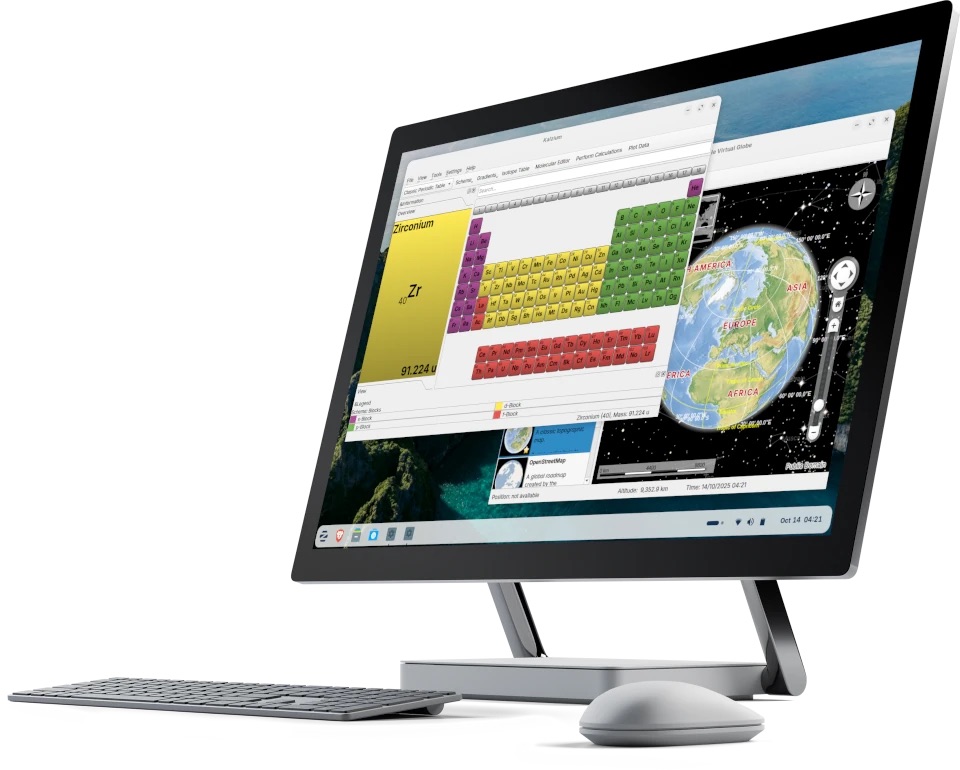
- Educational Apps and Games: Interactive software for subjects like math, science, geography, languages, and music. Examples include Marble (geography), Minetest (creative building), Kalzium (chemistry), GCompris (early learning games), and Stellarium (astronomy). 14
- STEM Tools:
- TurboWarp: Scratch-based programming for creating projects, stories, and animations (up to 100x faster execution, dark mode, add-ons). 14 15
- GDevelop: No-code game development studio.
- Fritzing: Electronics prototyping and design.
- Builder: IDE for desktop app development.
- LibreCAD: 2D CAD for technical drawings. 14
- Offline Learning: Kolibri app provides access to vast educational content without internet, shareable via local networks or external drives. 14
- Classroom and Management Tools:
- Veyon: Allows teachers to monitor, control, and broadcast screens wirelessly.
- Zorin Grid: Fleet management for deploying apps, configuring settings, and securing multiple devices. 14
- Productivity Enhancements: Gradebook for tracking performance, Spedread for speed reading, web app support for tools like Microsoft Office/365, OneDrive integration, and suggestions for Windows app alternatives. 15
- Security and Compatibility: Enhanced audio with PipeWire, improved Windows software support via WINE 10, remote desktop access (RDP), and expanded hardware compatibility.

Benefits for Education
- Engagement and Skill Development: Interactive apps make learning fun, fostering creativity, problem-solving, and STEM skills for the 21st century. 14
- Accessibility: Works on low-spec hardware, bridging digital divides in underprivileged areas with offline support.
- Cost Savings: Free software revives old PCs, reducing hardware upgrade needs.
- Management Efficiency: Tools like Veyon and Zorin Grid minimize IT maintenance for schools.
- Versatility: Suitable for students of all ages and even adults; educational apps are available via the software store in other editions too.

System Requirements
Zorin OS Education is optimized for older hardware:
- Minimum: 1 GHz dual-core 64-bit processor, 2 GB RAM, 15 GB storage, integrated graphics.
- Recommended: 2 GHz quad-core 64-bit processor, 4 GB RAM, 25 GB storage, dedicated graphics for advanced tasks.
- Supports computers up to 15 years old. Full details at the official system requirements page.

Step-by-Step Guide to Download Zorin OS Education
- Visit the Official Download Page: Go to https://zorin.com/os/education/download/ using your web browser. 14
- Select the Edition: Choose Zorin OS 18 Education (free edition). Note: It’s based on Ubuntu 24.04 LTS.
- Download the ISO File: Click the download button. The file is approximately 4-5 GB (exact size varies; check on-site). Download via direct link or torrent for faster speeds.
- Verify the Download (Optional but Recommended): After downloading, check the SHA-256 checksum provided on the download page to ensure file integrity. Use tools like
sha256sumon Linux or third-party apps on Windows/macOS. - Prepare a USB Drive: You’ll need a 16 GB USB flash drive to create a bootable installer (detailed in installation section).
Step-by-Step Guide to Install Zorin OS Education
Follow this guide after downloading the ISO. It applies to the Education edition. 12
- Backup Your Data: Copy important files to an external drive or cloud storage, as installation may overwrite existing data.
- Create a Bootable USB:
- Download balenaEtcher from https://etcher.balena.io/.
- Insert a 16 GB USB drive.
- Open balenaEtcher, select the Zorin OS ISO file, choose the USB drive, and click “Flash!”.
- Boot from USB:
- Insert the USB into the target computer and restart.
- Enter the boot menu (e.g., F12, Esc, or Option on Mac) and select the USB drive.
- Choose “Try or Install Zorin OS” (or with modern NVIDIA drivers if applicable).
- Start Installation:
- In the live session, click “Install Zorin OS”.
- Select language, keyboard layout, and connect to Wi-Fi if available.
- At “Installation Type”:
- For dual-boot: Select “Install alongside [current OS]”.
- For full install: Choose “Erase disk and install Zorin OS”.
- Advanced: Use “Something else” for manual partitioning.
- Complete Setup:
- Set up user account, timezone, and partitions.
- Wait for installation (10-30 minutes).
- Restart and remove the USB; boot into Zorin OS Education.
- Post-Installation: Update the system via the Software Updater and explore pre-installed apps.
Important Links
- Official Website: https://zorin.com/os/ – Main hub for all editions. 2
- Education Edition Page: https://zorin.com/os/education/ – Details on features and benefits. 0 14
- Download Link: https://zorin.com/os/education/download/ – Free ISO download. 14
- System Requirements: https://help.zorin.com/docs/getting-started/system-requirements/ – Hardware specs. 14
- Installation Guide: https://help.zorin.com/docs/getting-started/install-zorin-os/ – Detailed steps. 12
- Blog Announcement: https://blog.zorin.com/2025/10/14/zorin-os-18-has-arrived/ – Release notes for version 18. 3 15
- Zorin Grid (Management Tool): https://zorin.com/os/grid/ – For school IT admins. 14
- App-Specific Sites: TurboWarp (https://turbowarp.org/), GDevelop (https://gdevelop.io/), Kolibri (https://learningequality.org/kolibri/), Veyon (https://veyon.io/). 14
Conclusion
Zorin OS Education transforms standard computers into powerful educational tools, offering a blend of fun, productivity, and management features. With its free availability, ease of installation, and focus on accessibility, it’s an excellent choice for schools and learners. Always download from official sources to ensure security. For support, visit the Zorin forums or help docs. This guide is based on information as of October 17, 2025.