Introduction
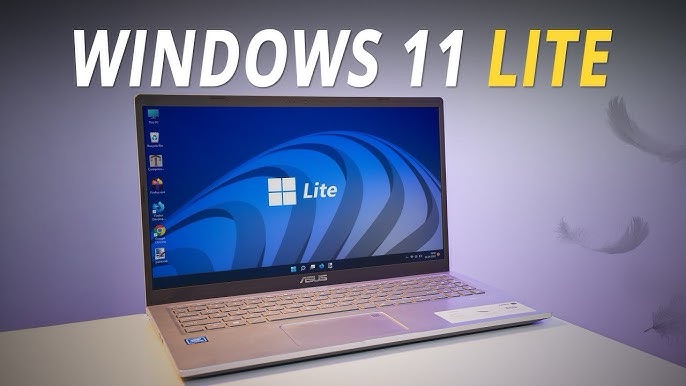
In the fast-paced world of computing, where modern operating systems like Windows 11 demand increasing resources, not every user has access to high-end hardware. Enter Windows 11 Lite – a stripped-down, customized version of Microsoft’s flagship OS designed to breathe new life into older or low-spec PCs. As of October 2025, Windows 11 Lite (often synonymous with projects like Tiny11 or custom builds such as Windows X-Lite and Ghost Spectre) has gained popularity among budget-conscious users, gamers on entry-level rigs, and those seeking a clutter-free experience. This article explores its features, benefits, safe download options, and a comprehensive step-by-step guide to installation. While not an official Microsoft product, it retains the core appeal of Windows 11 with significantly reduced overhead.
Note: Windows 11 Lite is a third-party modification. Always download from reputable sources, scan files for malware, and use at your own risk. It’s ideal for non-sensitive tasks; avoid it for banking or high-security needs.
What is Windows 11 Lite?
Windows 11 Lite is a debloated variant of Windows 11, created by enthusiasts using tools like NTLite, Tiny11 Builder, or custom scripts. It removes unnecessary components – such as bloatware apps (e.g., Candy Crush, Xbox services), telemetry, and resource-heavy features – while preserving essential functionality. Based on builds like 24H2 (26100.6584) or earlier 22H2 versions, it bypasses strict requirements like TPM 2.0 and Secure Boot, making it accessible for PCs from the early 2010s. Popular variants include:
- Tiny11: Focuses on minimalism, shrinking the ISO to under 3GB.
- Windows X-Lite: Emphasizes gaming and stability with toolkit customizations.
- Ghost Spectre: Pre-activated, gaming-optimized builds with theme packs.
Unlike official Windows 11 IoT Enterprise LTSC (Microsoft’s “lite” for pros, which lacks ads and Copilot but requires enterprise licensing), these are community-driven and free.
Key Features
Windows 11 Lite maintains the sleek, modern interface of Windows 11 while enhancing efficiency:
- Centered Taskbar and Start Menu: Retains the redesigned UI inspired by Windows 10X, with customizable icons and themes.
- UWP App Support: Compatible with Universal Windows Platform games and apps (e.g., Forza, Gears of War).
- Multi-Language and Keyboard Support: Works with any language, including regional keyboards.
- Update Controls: Pause updates until 2077; updatable to latest Windows 11 builds via manual patches.
- Custom Enhancements: Includes packs for icons, themes, and animations; supports WINE for legacy apps.
- Gaming Optimizations: Low-latency tweaks in variants like Xtreme LiteOS for better FPS on integrated graphics.
- Privacy Tweaks: Disables telemetry, ads, Widgets, and Copilot by default.
These features ensure a familiar Windows experience without the fluff.
Benefits in 2025
As hardware ages and software bloats, Windows 11 Lite shines for modern needs:
- Performance Boost: Runs smoothly on 2GB RAM and 10-20GB storage (vs. 4GB/64GB for standard Windows 11), with faster boot times (under 10 seconds) and reduced CPU/RAM usage by up to 50%. 25
- Compatibility for Old PCs: Bypasses TPM/Secure Boot; revives machines from 2010 onward, reducing e-waste.
- Resource Efficiency: Ideal for low-end laptops, HTPCs, or as a secondary OS; lower power draw extends battery life.
- Gaming and Productivity: Enhanced for entry-level gaming (e.g., via Steam) and tasks like browsing or office work; no crashes reported in tests on 2GB setups. 25
- Customization Freedom: Users can add back features via toolkits, unlike locked-down official LTSC editions.
- Cost Savings: Free to download and use (pre-activated in some builds); no need for hardware upgrades.
Drawbacks include missing features (e.g., no built-in Defender – install third-party antivirus) and potential update issues.
System Requirements
Windows 11 Lite is forgiving:
- Minimum: 1GHz dual-core 64-bit CPU, 2GB RAM, 10GB storage, integrated graphics.
- Recommended: 2GHz quad-core CPU, 4GB RAM, 20GB storage for smoother multitasking.
- Supports 32-bit/64-bit; no TPM/Secure Boot needed.
Safe Download Options
Avoid shady sites – stick to trusted sources. Always verify ISO checksums (SHA-256) post-download using tools like HashCalc. Here’s a curated list for 2025:
- Tiny11 (Recommended for Beginners): Download from the official GitHub or archive.org (e.g., Tiny11 24H2 ISO, ~3GB). Safe, open-source script-based. 3 12
- Link: Tiny11 Builder on GitHub
- Windows X-Lite: Multiple builds (e.g., Harmony, Resurgence) for gaming. ~2-4GB.
- Link: windowsxlite.com
- Ghost Spectre Windows 11 Pro Lite (24H2): Pre-activated, gaming-focused. ~3.5GB.
- Link: taiwebs.com 14
- Win10Lite Custom Builds: 32/64-bit versions with security intact.
- Link: win10lite.com/windows-11-lite 0
- DIY Option: Use NTLite on official Microsoft ISO for ultimate safety.
- Microsoft ISO: microsoft.com/software-download/windows11
- NTLite Tool: ntlite.com
Torrent magnets are available on FileCR for faster downloads, but use a VPN and antivirus (e.g., Malwarebytes).
Step-by-Step Guide to Download and Install
Part 1: Download
- Choose a Source: Visit one of the links above (e.g., win10lite.com for a quick start). 0
- Select Version: Pick 64-bit for modern PCs or 32-bit for very old ones. Download the ISO (2-5GB; use torrent if direct is slow).
- Verify Integrity: Right-click the ISO > Properties > Check SHA-256 against the site’s provided hash. Tools: PowerShell command
Get-FileHash file.iso -Algorithm SHA256. - Prepare Tools: Download Rufus (free USB creator) from rufus.ie.
Part 2: Create Bootable USB
- Insert USB: Use an 8GB+ flash drive (it will be wiped).
- Launch Rufus: Select your USB under “Device.”
- Load ISO: Click “Select” next to “Boot selection” and choose the downloaded ISO.
- Configure: Partition scheme: GPT (UEFI); File system: NTFS. Leave defaults otherwise.
- Start: Click “Start” to flash (5-10 minutes). Eject safely when done.
Part 3: Installation
- Backup Data: Copy important files to external/cloud storage.
- Create Partition (Optional for Dual-Boot): On your current OS, open Disk Management (Win + X > Disk Management). Shrink a volume to create 20GB+ unallocated space.
- Boot from USB: Insert USB, restart PC. Enter BIOS (F2/Del/Esc/F12 during boot). Set USB as first boot device; disable Secure Boot if needed. Save and exit.
- Start Setup: PC boots to installer. Select language/time/keyboard > “Install Now.”
- Product Key: Skip if pre-activated or enter your key; accept license.
- Edition: Choose “Windows 11 Pro/Home” (Lite is embedded).
- Install Type: “Custom” for advanced. Select partition (new one for clean install) > Next.
- Wait: Installation takes 10-30 minutes; PC restarts multiple times.
- Setup Wizard: Create user account, set PIN (skip Microsoft account for local). Connect Wi-Fi if desired (avoid during install to prevent auto-updates).
- Post-Install: Run Windows Update manually (if enabled). Install drivers/antivirus. Add apps via browser.
For DIY Lite: Download official ISO, run NTLite/Tiny11 Builder, remove bloat (e.g., Edge, Teams), then create USB from the new ISO. 5 9
Potential Issues and Tips
- No Internet During Install: Prevents Microsoft from re-adding bloat.
- Missing Drivers: Download from manufacturer post-install (e.g., Wi-Fi via Ethernet).
- Activation: Use your original key; some builds are pre-activated.
- Updates: Manual via ISO; pause auto-updates in Settings.
- Alternatives: If Lite feels too bare, try official LTSC or Linux distros like Zorin OS Lite.
Conclusion
Windows 11 Lite democratizes access to Microsoft’s modern OS, turning sluggish relics into zippy workhorses. With its lean footprint and snappy performance, it’s a game-changer for 2025’s diverse hardware landscape. Download responsibly, follow the steps, and enjoy a bloat-free Windows experience. For official support, stick to stock Windows 11 – but for revival projects, Lite is unbeatable.
This guide is based on data as of October 17, 2025. Always prioritize security.