Introduction

Zorin OS Core is the free, foundational edition of Zorin OS, a user-friendly Linux distribution based on Ubuntu, designed to provide a smooth transition for Windows and macOS users to the Linux environment. Released as part of Zorin OS 18 in October 2025, this edition offers a balance of performance, accessibility, and customization, making it ideal for personal use, small businesses, and newcomers to Linux. 15 Built on Ubuntu 24.04 LTS, it provides long-term support until June 2029 and is optimized for reviving older hardware while supporting modern systems. 3 This guide details its features, benefits, step-by-step download and installation process, and key links as of 08:39 AM IST on Friday, October 17, 2025.
Overview and History
Zorin OS, developed by Zorin Group, was first released in 2010 to cater to users seeking a Windows-like experience on Linux. The Core edition, a free offering, has evolved with each release, with Zorin OS 18 marking a significant update. It builds on the GNOME desktop environment with custom enhancements like the Zorin Desktop and Zorin Menu, aiming to simplify Linux adoption. 2 The latest version introduces a modernized interface, advanced window tiling, and improved performance, reflecting Zorin’s commitment to accessibility and eco-friendliness by extending the life of old PCs. 15
Key Features
Zorin OS Core combines essential tools and enhancements tailored for general use:
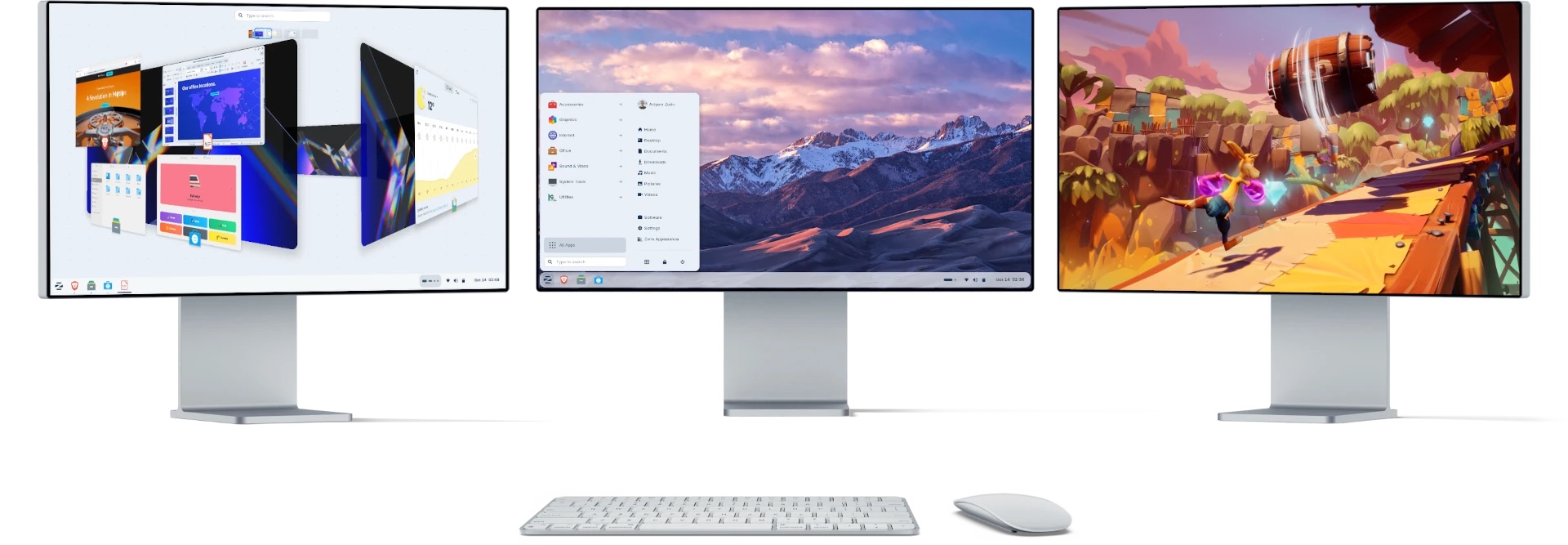
- User Interface and Performance: A redesigned desktop with rounded corners, floating panels, and lighter color palettes (e.g., yellow, brown themes). Advanced window tiling allows drag-and-drop layouts and customizable key bindings, with optimizations for faster responsiveness on hardware up to 15 years old. 15
- Pre-installed Software: Includes LibreOffice (word processing, spreadsheets), Firefox (web browsing), Rhythmbox (music), and Shotwell (photo management), plus a software store for additional apps. 2
- Windows Compatibility: Supports .exe and .msi files via WINE 10 and PlayOnLinux, with OneDrive integration and suggestions for Windows app alternatives. 15
- Customization: Zorin Appearance for themes, wallpapers, and layouts (e.g., Windows 11, macOS, Linux Mint styles), Zorin Connect for Android integration, and dark/light/night modes with blue light filtering. 2
- Gaming and Multimedia: Supports Steam, Lutris, Epic Games, itch.io, and GOG, with enhanced audio via PipeWire. 15
- Security and Privacy: No data collection, encrypted connections, and an Open Source audit ensure a secure environment. 2
- Accessibility: Features like screen reader, magnifier, and click assist, supporting over 100 languages. 15
- Hardware Support: Compatible with NVIDIA, AMD, and Intel graphics, dual/triple monitors, 4K displays, and touchscreen devices. 2
Benefits
- Ease of Use: Ideal for Windows/macOS migrants with a familiar interface and non-technical setup.
- Cost-Effective: Free and revives old PCs, reducing e-waste.
- Versatility: Suitable for personal productivity, gaming, and light development.
- Long-Term Support: LTS until June 2029 ensures stability. 15
System Requirements
- Minimum: 1 GHz dual-core 64-bit processor, 2 GB RAM, 15 GB storage, integrated graphics.
- Recommended: 2 GHz quad-core 64-bit processor, 4 GB RAM, 25 GB storage, dedicated graphics.
- Supports computers up to 15 years old. Full details at the official system requirements page. 14
Step-by-Step Guide to Download Zorin OS Core
- Visit the Official Download Page: Go to https://zorin.com/os/download/ using your web browser. 2
- Select the Edition: Choose Zorin OS 18 Core (free edition).
- Download the ISO File: Click the download button. The file is approximately 4-5 GB (exact size varies; check on-site). Opt for direct download or torrent for faster speeds.
- Verify the Download (Optional but Recommended): After downloading, verify the SHA-256 checksum provided on the download page using tools like
sha256sum(Linux) or third-party apps (Windows/macOS). - Prepare a USB Drive: Use a 16 GB USB flash drive for creating a bootable installer (see installation steps).
Step-by-Step Guide to Install Zorin OS Core
Follow this guide after downloading the ISO. 12
- Backup Your Data: Save important files to an external drive or cloud storage, as installation may overwrite data.
- Create a Bootable USB:
- Download balenaEtcher from https://etcher.balena.io/.
- Insert a 16 GB USB drive.
- Open balenaEtcher, select the Zorin OS ISO, choose the USB, and click “Flash!”.
- Boot from USB:
- Insert the USB into the target computer and restart.
- Access the boot menu (e.g., F12, Esc, or Option on Mac) and select the USB.
- Choose “Try or Install Zorin OS” (or with modern NVIDIA drivers if applicable).
- Start Installation:
- In the live session, click “Install Zorin OS”.
- Select language, keyboard layout, and connect to Wi-Fi if available.
- At “Installation Type”:
- For dual-boot: Select “Install alongside [current OS]”.
- For full install: Choose “Erase disk and install Zorin OS”.
- Advanced: Use “Something else” for manual partitioning.
- Complete Setup:
- Set up user account, timezone, and partitions.
- Wait for installation (10-30 minutes).
- Restart and remove the USB; boot into Zorin OS Core.
- Post-Installation: Update the system via the Software Updater and explore pre-installed apps.
Important Links
- Official Website: https://zorin.com/os/ – Main hub for all editions. 2
- Download Page: https://zorin.com/os/download/ – Direct link for Zorin OS 18 Core ISO. 2
- System Requirements: https://help.zorin.com/docs/getting-started/system-requirements/ – Hardware specs. 14
- Installation Guide: https://help.zorin.com/docs/getting-started/install-zorin-os/ – Detailed installation steps. 12
- Release Notes: https://blog.zorin.com/2025/10/14/zorin-os-18-has-arrived/ – Details on Zorin OS 18 features. 3 15
- Help and Support: https://help.zorin.com/ – Troubleshooting and FAQs. 12
- Community Forums: https://forum.zorin.com/ – User support and discussions. 2
- balenaEtcher: https://etcher.balena.io/ – Tool for creating bootable USB. 12
Conclusion
Zorin OS Core offers a robust, free platform for users transitioning to Linux, with a polished interface, broad compatibility, and long-term support. Its ability to revive old hardware and support modern workflows makes it a versatile choice. Download and install from official sources for security, and refer to the provided links for assistance. This guide is based on information as of 08:39 AM IST on October 17, 2025.


